Affinity + MainTop RIP without pain: Spot Channel Builder, i.e. spot channel from a layer
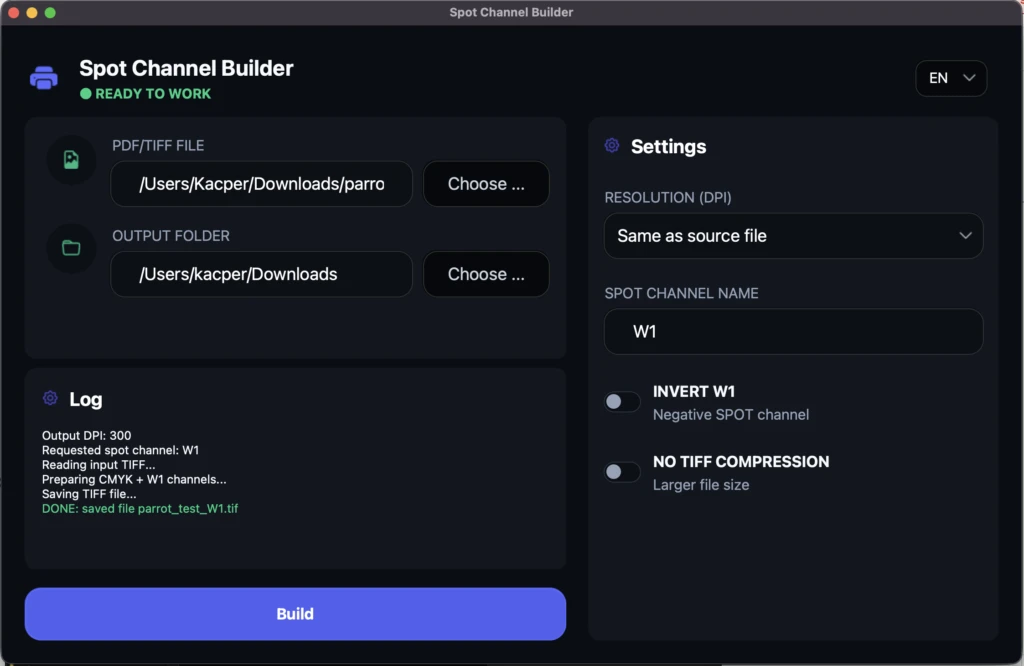
If you work in Affinity and prepare files for print, you probably know this moment: everything looks good in the project, you export PDF or TIFF, drop it into RIP (e.g. MainTop)… and the spot/spot color channel is not recognized as it should be. Instead of “W1” (white underbase) or varnish, you get a regular image or something the RIP interprets differently.
And then the workarounds begin: hacks, manual fixes, blind tests, repeated exports. This is exactly why Spot Channel Builder was created. A small program that, for many users, is simply a game changer in the Affinity -> MainTop -> RIP workflow.
Why are Affinity and spot channels often a problem?
In practice, the point is simple: in a DTF/UV/production print workflow, RIP must receive a file where the spot channel is saved in a way the tool understands. In many cases (including MainTop), the key points are:
- correct creation of the spot channel,
- correct channel name (e.g. W1 for white underbase),
- and the output file format (often RIP-ready TIFF is best).
In Photoshop this can be handled in the classic way via spot channels. In Affinity this is practically impossible - not because Affinity is “weak,” but because a typical RIP workflow requires a specific way of storing spot data.
Spot Channel Builder - what is it?
Spot Channel Builder is a program that:
- takes your PDF or TIFF,
- finds the layer with the name required by RIP (e.g. W1),
- creates a spot/spot color channel from it,
- and saves a ready TIFF for RIP that MainTop and other tools can correctly recognize.
It also has a useful bonus that can save you in a crisis:
Smart fallback: if there is no W1 layer, the program still works
If there is no layer with a given name (e.g. W1), Spot Channel Builder can automatically create a spot channel directly from the image (currently without thresholding).
This means: even if you forget to prepare the underbase as a separate layer, you can still quickly generate a file or deliver production in emergency mode.
Most common use cases: white underbase and varnish
In practice, spot channels are most often used for:
- white underbase (for printing on dark materials),
- varnish (e.g. selective varnish),
- other masks required by RIP.
In Spot Channel Builder you can:
- set the spot channel name (if your RIP requires a name other than W1),
- invert the mask (Invert Mask),
- change DPI,
- and generate a RIP-ready TIFF with one click.
Step-by-step tutorial: Affinity -> MainTop -> RIP
This is the simplest workflow:
- In Affinity: create a layer for underbase/varnish and name it exactly as your RIP requires (e.g. W1 for MainTop).
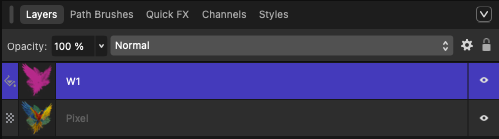
- Export the file as PDF or TIFF.
- Open the file in Spot Channel Builder.
- Set options (DPI / spot name / invert).
- Click Build TIFF for RIP.
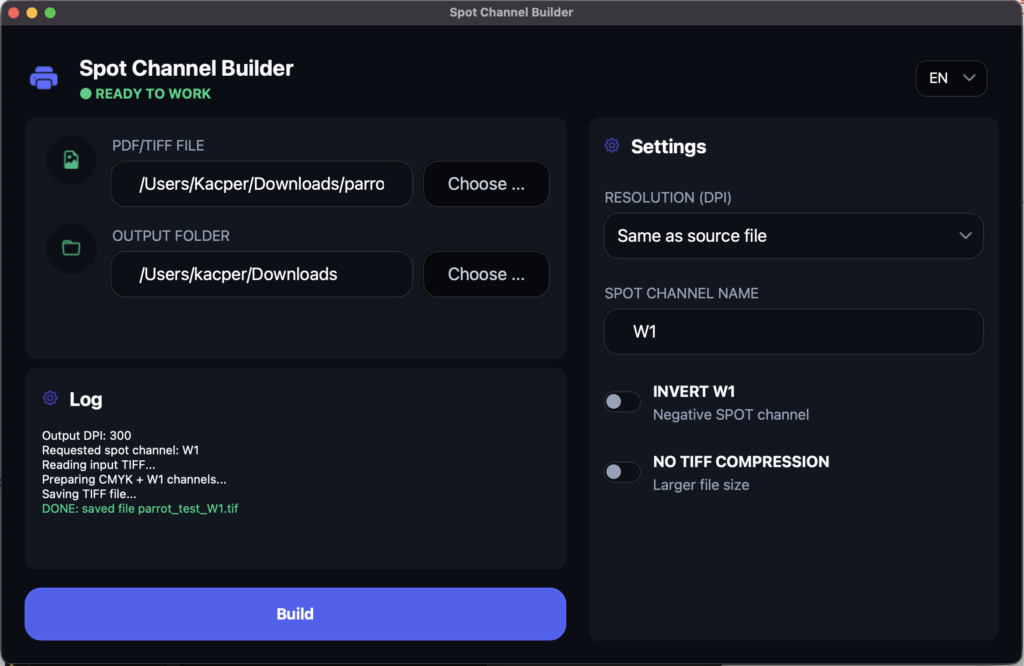
- You get a ready TIFF file in the format: your_file_spot_name.tiff
And you can load it into RIP. That’s it. You no longer need to buy a Photoshop license only to add spot color.
Why is this a game changer?
Because it saves time and removes risk.
-
Fewer trial-and-error tests
You don’t need to make 10 exports and check whether “RIP finally sees it.”
-
The “Affinity spot channel / spot color” problem is gone
You get a simple way to create spot channels for MainTop and other RIPs, without jumping between programs.
-
This is a production tool
You get one concrete button: build TIFF for RIP and done.
-
It also works in emergency mode
No W1 layer? The program can build a spot channel from the image.
Download and license (simple)
You can download the program for free here: Spot Channel Builder
For activation and full use you need a license. The license is very affordable, for one device, lifetime, assigned to one e-mail. You receive the license number by e-mail (usually immediately, max 24h).
Who is Spot Channel Builder for?
Spot Channel Builder is for people who use Affinity, do not want to pay for Photoshop, and need a spot channel for their RIP software. For print shops, wall printing, UV printing, DTF, and more.
Highly recommended!